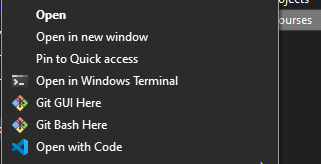
I have been struggling with dragging and dropping folders onto open VS Code instances to open folders for some time. I liked how you could right-click and open a folder on VS Code directly from the Right-Click Popup Menu on my Windows Machine (fig below):
So I found a way using MacOS’ Shortcuts! (Without using Automator)
Here are the steps:
Open the ‘Shortcuts’ app on your Mac
On the Left Pane, navigate to ‘Quick Actions’
On the top bar, press the ➕ button to add New Shortcut.
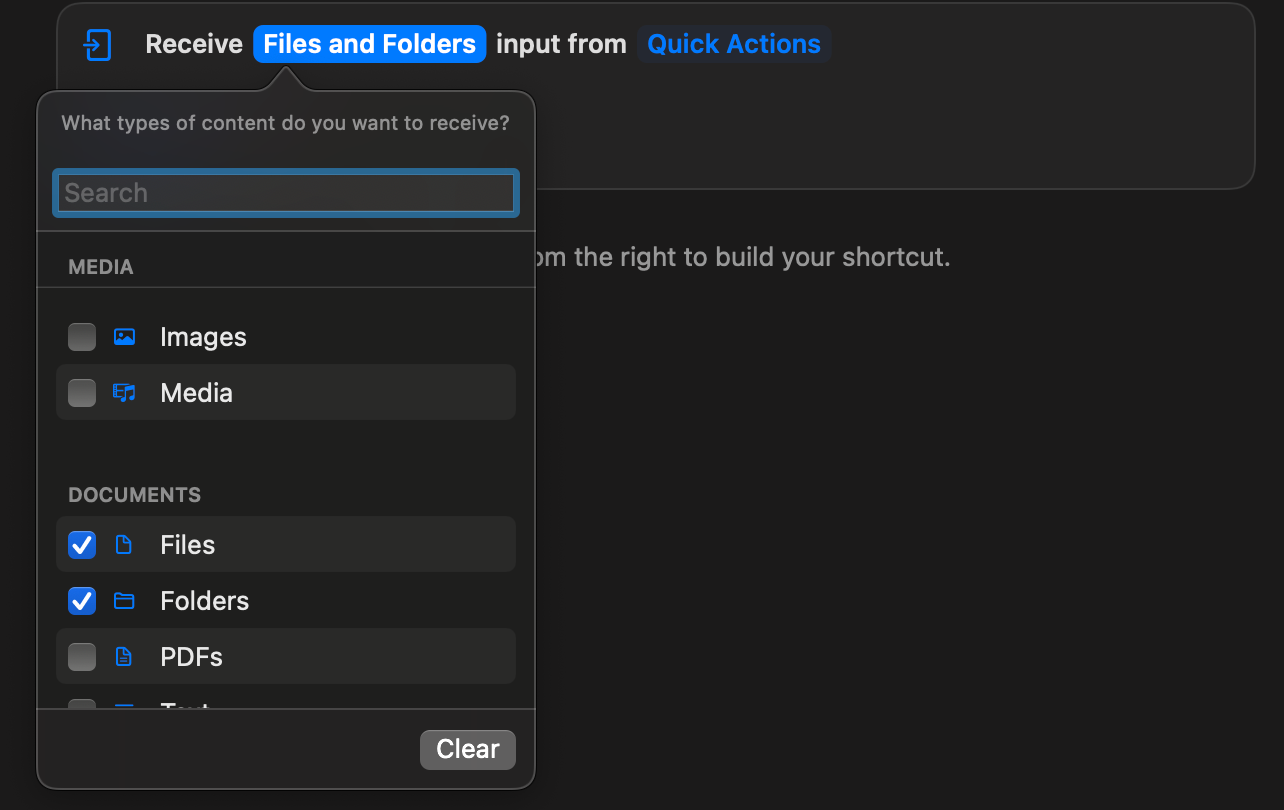
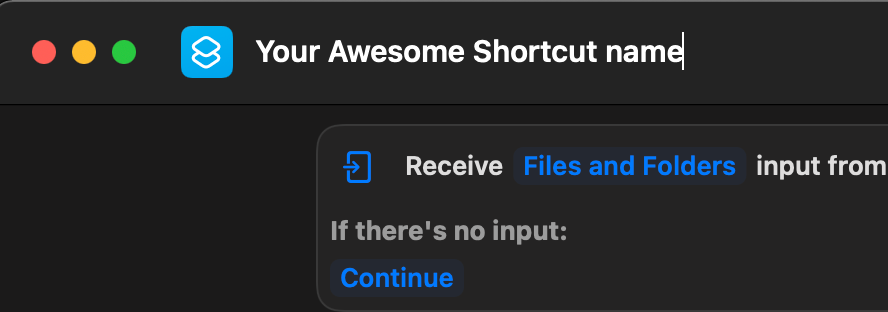
Click on ‘Any’ and change to ‘Files and Folders’ by selecting only those from the dropdown that appears on clicking the ‘Any’ field.
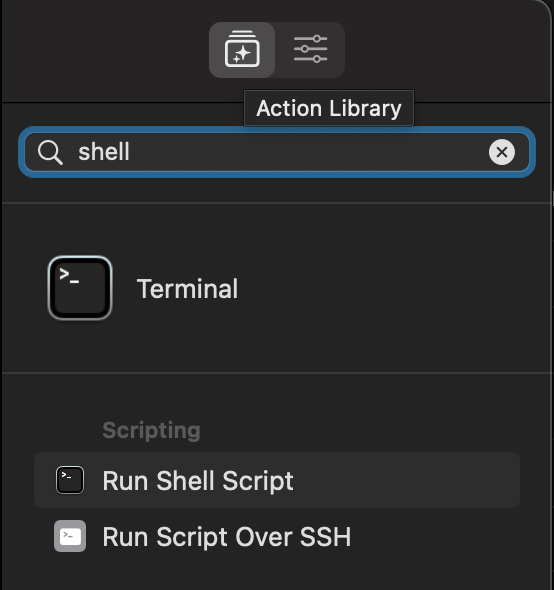
Click on ‘Action Library’ on the right pane and search for ‘shell’. Drag and drop the ‘Run Shell Script’ onto the main pane. This will add the action to the Shortcut’s flow.
In the shortcut details (on the right pane), make sure Use as Quick Action is ticked and so are ‘Finder’ and ‘Service Menu’.
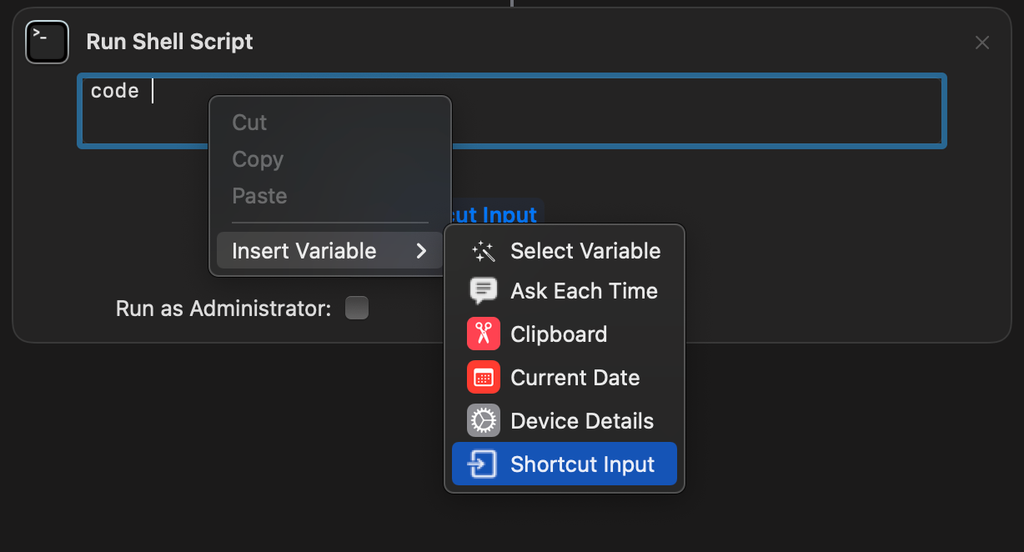
In the newly added action called ‘Run Shell Script’ write
codeand right-click to get the below pop-up, go ahead ‘Insert variable’ and then ‘Shortcut Input’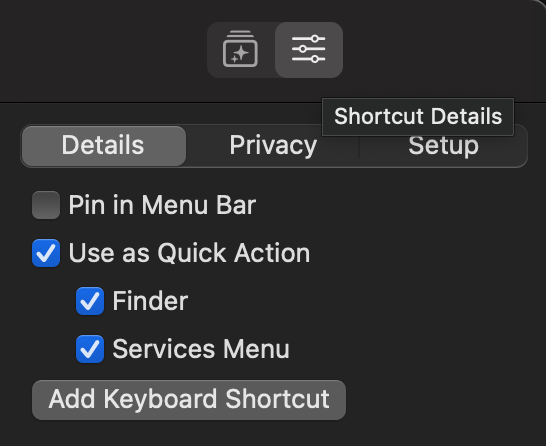
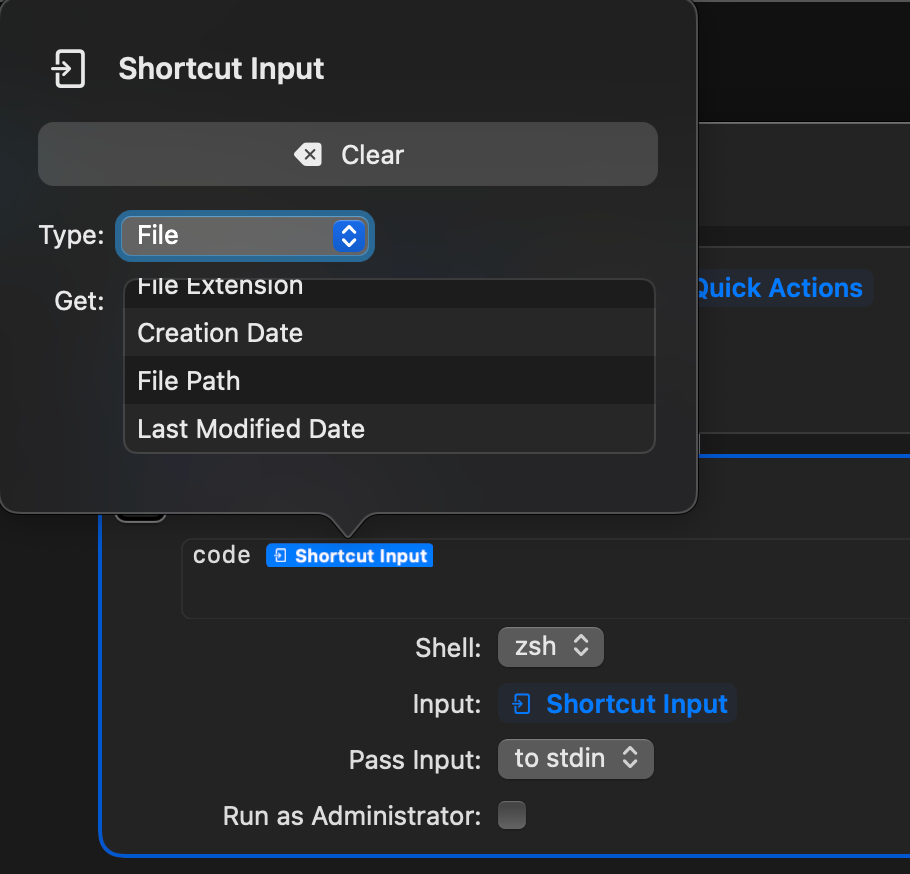
Click on the ‘Shortcut Input’ tag that appears. A pop-up must appear, choose ‘File Path’ and just click anywhere else. This will change the tag to ‘File Path’
Set ‘Pass Input:’ option to ‘as arguments’
Be sure to set a cool name for your new Shortcut! I named mine a boring “Open in VSCode”. 😅
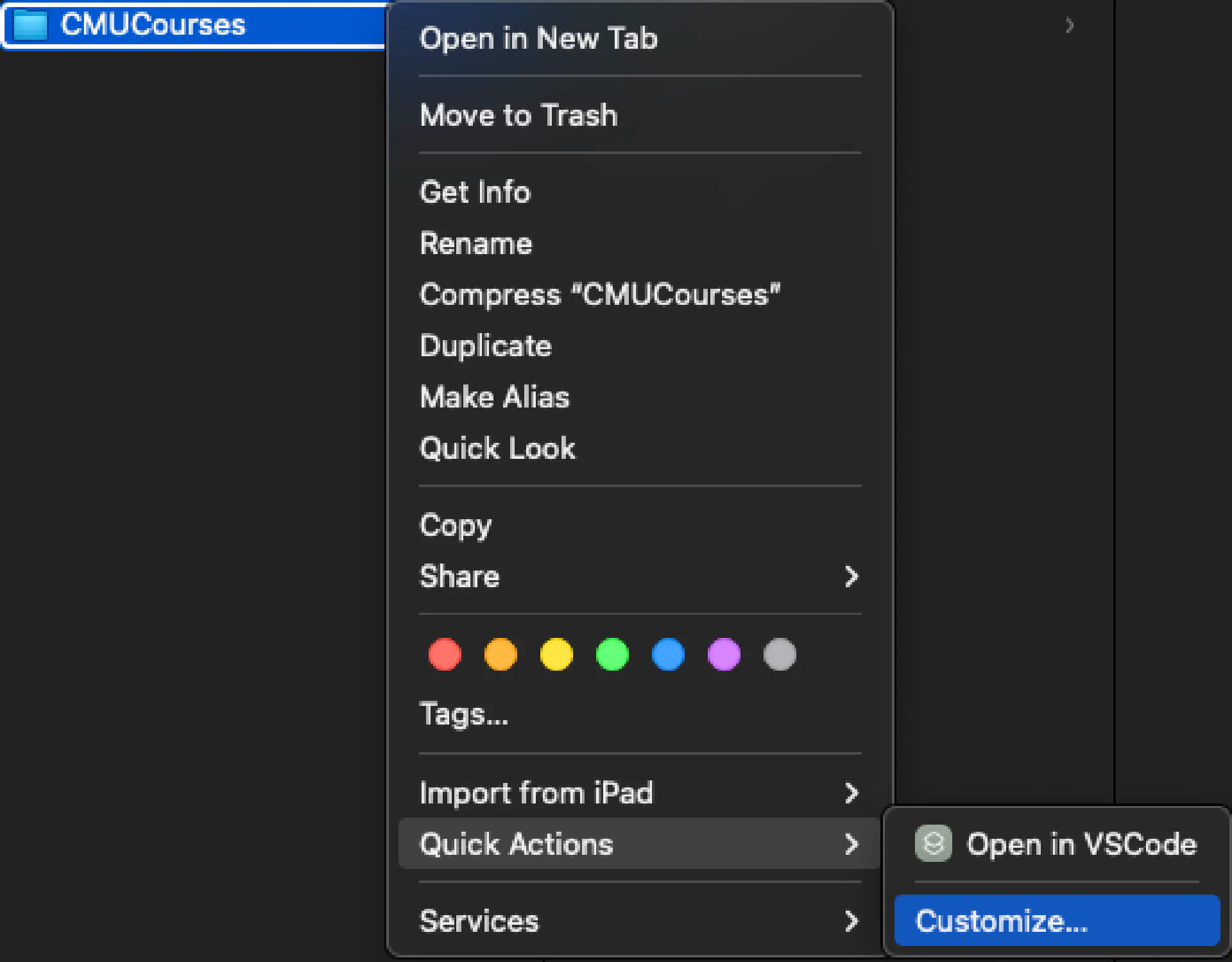
Open a new ‘Finder’ Instance, right-click on a folder, go to ‘Quick Actions’ > ‘Customize…’ (ignore my already added Open in VSCode Shortcut)
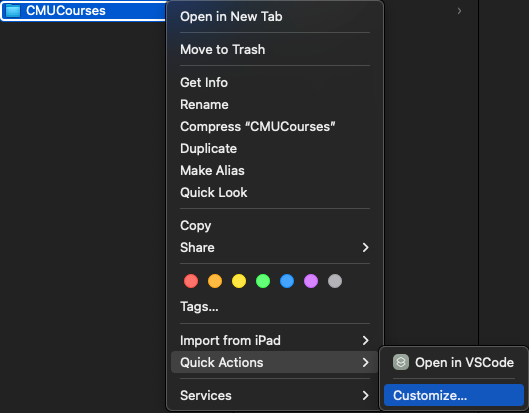
Make sure your Shortcut’s Name is selected. Exit the dialogue and Test!